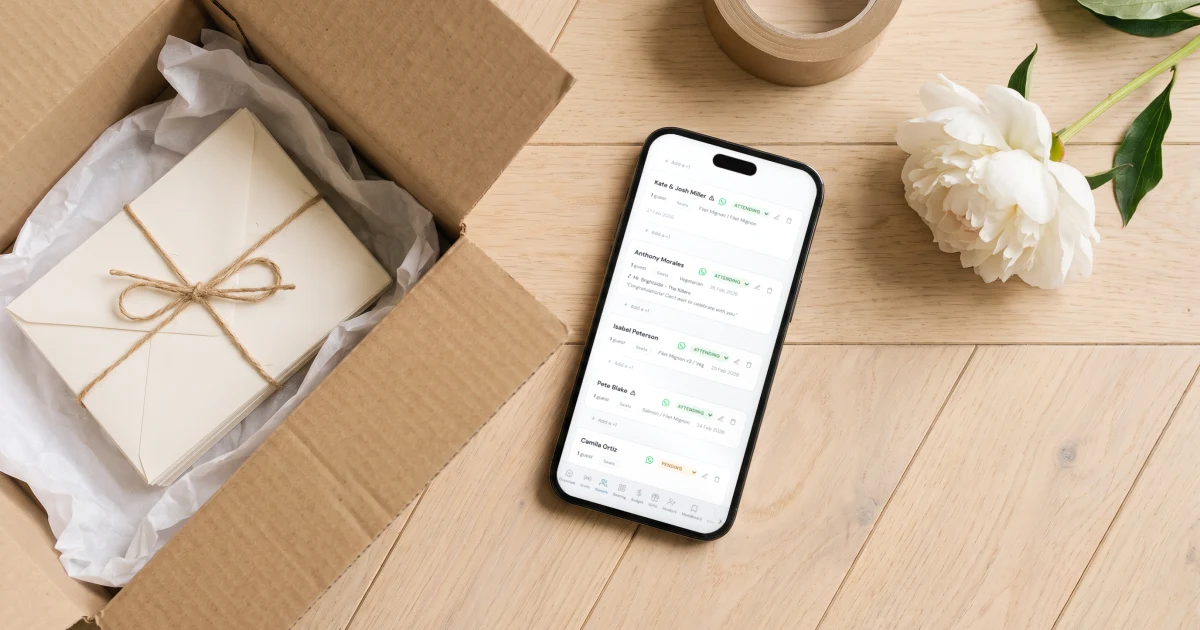
To move your wedding website off Zola without starting over, export your guest list and your RSVPs from Zola on a computer (Zola's help page says the export is not available from its app), then drop that file into the assistant of The Private Wedding App, an all-in-one wedding planning platform, which adds every guest with their email and phone on one card you confirm. Guests who already replied are marked attending or declined from the status menu on their row, you rebuild the pages of the website in the builder, and you send everyone one new link by email, WhatsApp or text. There is no automatic Zola importer: your Zola design, photos and web address do not move, and your registry stays where it is. It costs $189 once for lifetime access or $19.99 a month. 3-day free trial.
$19.99 a month
3 days free, then $19.99/month. No commitment, stop whenever you want.
Try it free for 3 days →You built your website on Zola, typed in 150 names, and some of your guests have already replied. Then the news came that The Knot Worldwide is buying Zola, and you would rather your guest list lived somewhere else. The good news is that the list itself is the hard part, and it moves in a file. Here is what to export, how to bring it in, how to keep the answers you already have, and what you will have to redo by hand.
Why couples are moving off Zola right now
The Knot Worldwide has agreed to acquire Zola, Reuters reported on 14 October 2026, citing two people familiar with the deal; PYMNTS and The Daily Record reported it the same week. The deal is still pending: financial terms were not disclosed, it is subject to closing conditions including any required regulatory clearances, and Zola is expected to keep operating as a separate brand. Once it closes, Zola and The Knot will have one owner, which also runs WeddingWire and Hitched.
The reports announce no change for couples already using Zola, so nothing forces you to move. If you would rather keep your guest list on a platform that is not part of The Knot Worldwide, The Private Wedding App is independent, owned by neither The Knot Worldwide nor Zola, for $189 once for lifetime access, or $19.99 a month. The steps below show what moves, what does not, and how to do each part.
Before you leave: export your guest list and RSVPs from Zola
Do this on a computer. Zola's own help page, Can I export or print my guest list from Zola? (read on 19 November 2026), says you can export "from a desktop computer" and that "right now this option isn't available from the app".
For the guest list, it says to go to your Guest List and "click dots in the top right-hand corner and select the format you'd like to receive". You can export the full list, just the addresses for your invitations, or the RSVPs. Take the full list.
For the replies, it says to go to the Track RSVPs page and click "Export RSVPs" in the upper right corner "to download a .csv or Excel file". Keep that file open next to you: it is your record of who already said yes or no.
While you are still in Zola, copy the texts you want to keep (your schedule, travel and hotel notes, your FAQ) into a document, and make sure you have your own copies of the photos you uploaded there.
- Full guest list export, from a computer
- "Export RSVPs" file from the Track RSVPs page
- Your website texts copied into a document
- Your own copies of your photos
What moves, and what you redo by hand
Be clear about this before you start, so nothing surprises you halfway. The guest list moves in a file. The answers you already received are set by hand. The website pages are rebuilt, and some things simply stay with Zola.
Bring the guest list in: drop the file, or paste the columns
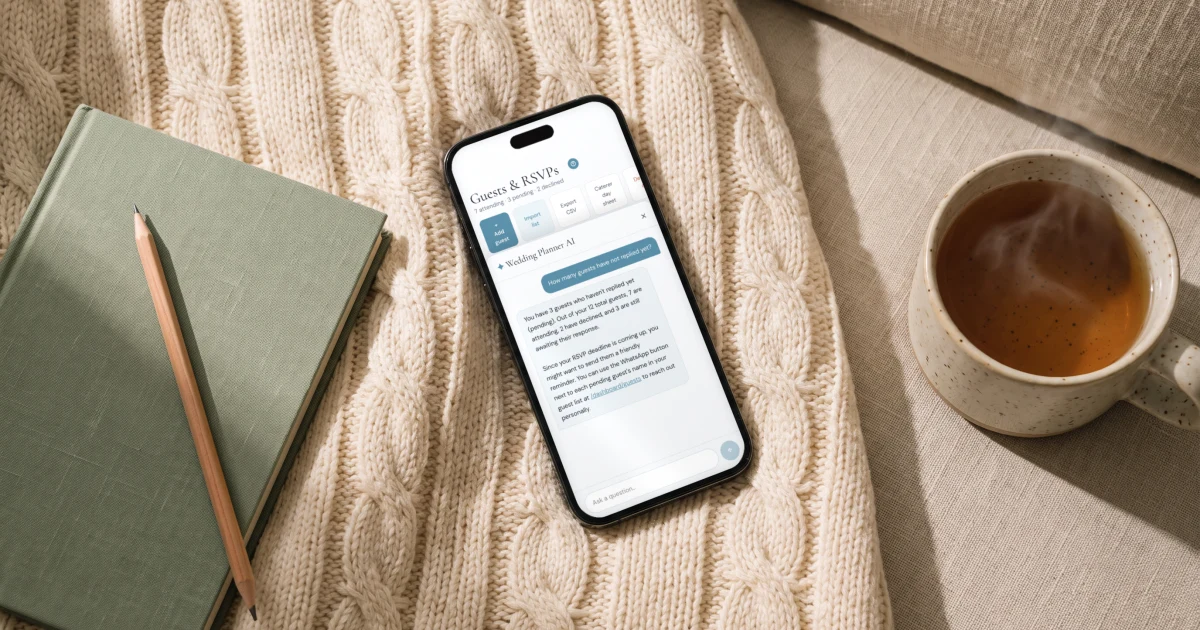
The easiest way: open the assistant (the button on every dashboard page) and drop your Zola export into the chat, or attach it with the paperclip. Excel (.xlsx) and CSV files work as they are, with no reformatting. The file is read in your browser, the columns are found by their header (a name column, or first and last name, plus email and phone), and the assistant shows one card with every guest it is about to add. Nothing changes until you press Confirm.
A card holds up to 200 guests. With a longer list, confirm the first card and drop the same file again: names already on your list are skipped, so nobody is added twice.
The other way: on the Guests page, open "Import list" and paste the columns straight from Excel or Google Sheets, with their header row. Emails and phone numbers next to a name are picked up, and a Group column sorts each guest into their group.
Your new guest list starts with a few example guests so the page is not empty. Adding or importing your first real guest clears them.
See the guest list tracker.

Keep the RSVPs you already have
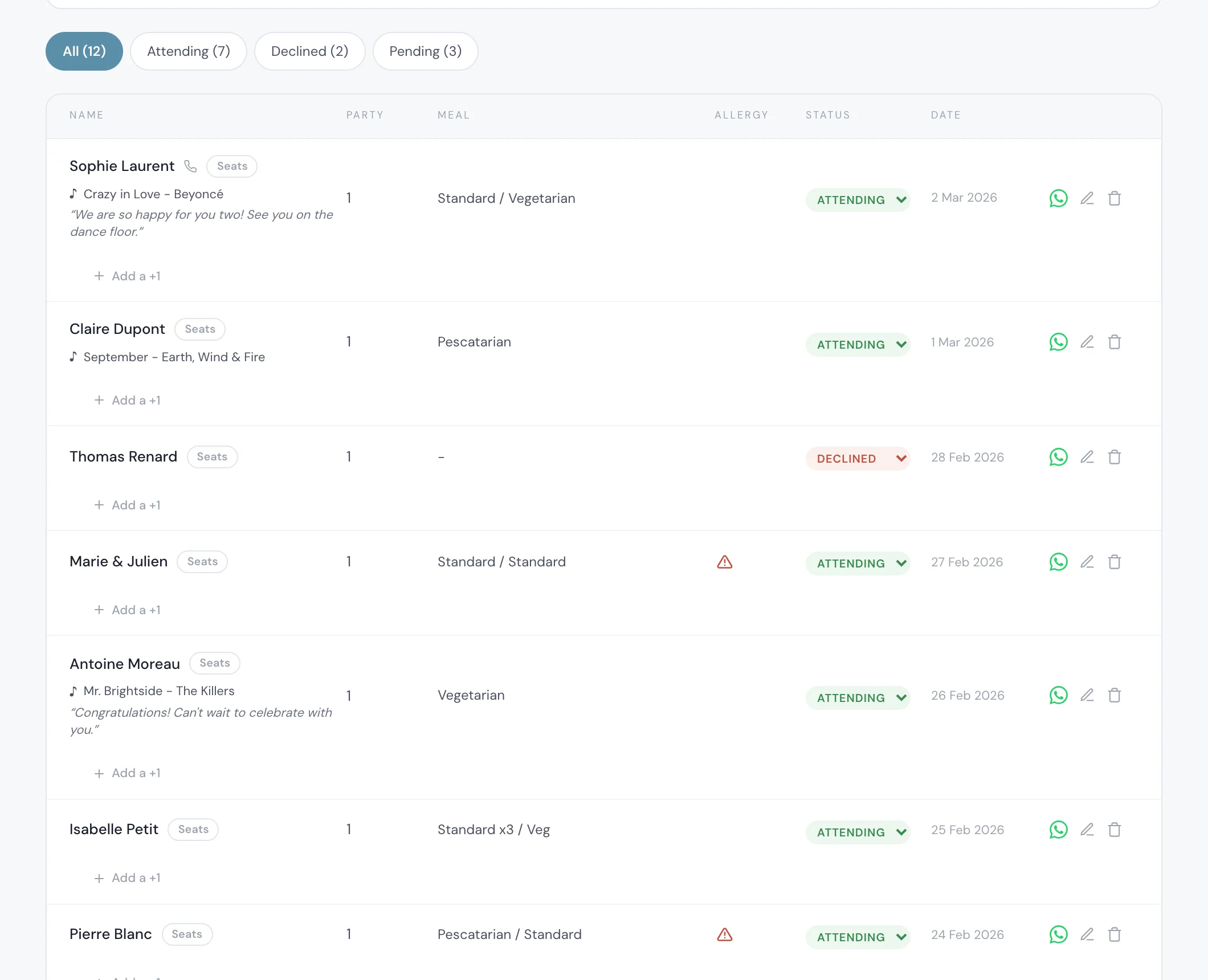
The import brings in names and contact details, not answers. With your Zola RSVP export open, set each guest who already replied from the status menu on their row: attending or declined. Everyone else stays pending.
If a guest already gave you a meal or an allergy, open the pencil on their row and add it. With RSVP per event switched on, the same pencil sets one answer per event.
You do not have to do all of it by hand. A guest who opens the new link and replies again lands on their existing row, matched by name, email or phone, so their new answer simply replaces the status you set. You can also set only the declines by hand and let everyone else confirm again on the new link, which collects each person's meal and allergy answer at the same time.
The Pending filter then shows exactly who still owes you an answer.
Rebuild the website pages
Your guests open one link with your cover, schedule, venues with maps, info sections (travel, hotels, dress code, FAQ), RSVP, gifts and your story. You fill each page in the builder, or with Visual editing, where you tap the invitation itself to change a text or a photo.
Paste the texts you copied from Zola into the matching pages. You can also ask the assistant to set up your names, date, schedule, venues and info sections for you: each change appears on a card and is applied only when you confirm.
If a designer or a stationer already made your invitation artwork, upload it as an image for the cover. If your registry stays on Zola or elsewhere, add its link as a registry card in the Gifts tab; cash gifts can also be received directly.
See the gift and registry page.
Events and invite groups: who sees what
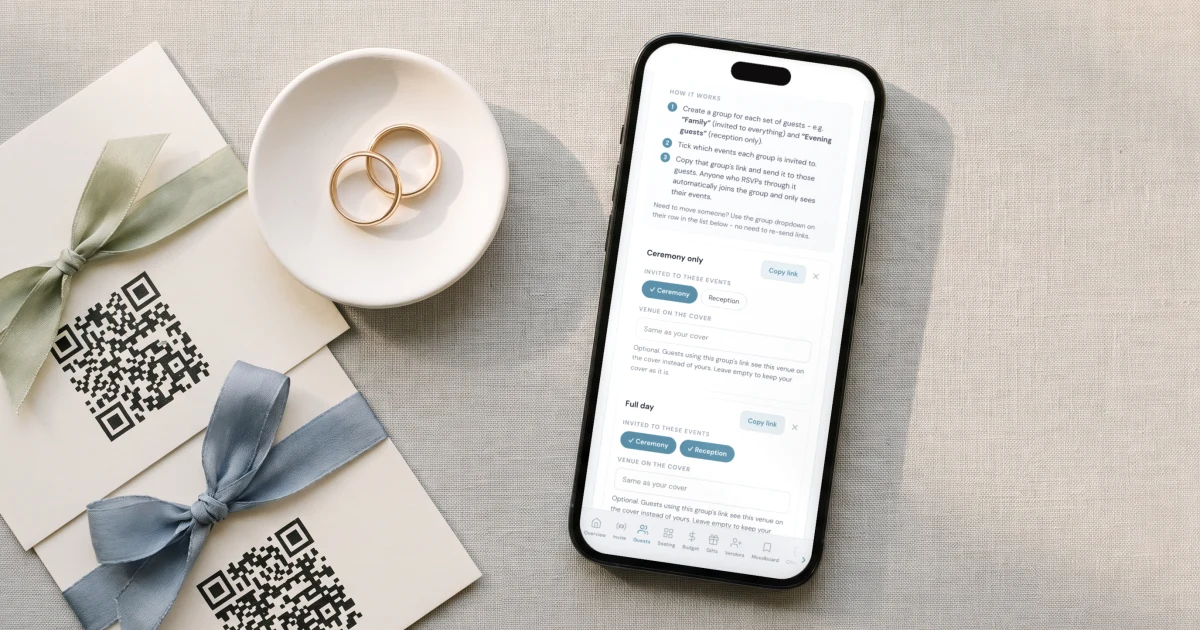
If your wedding has a rehearsal dinner, a ceremony, a reception and a brunch, switch on "This wedding has multiple events" in the RSVP Settings tab (it is off by default) and add each event. Guests then answer each event separately, with a count for each.
Invite groups decide who is invited to what. Create a group, tick its events, and copy its link: guests who open it see only their events. If your Zola export has a group or party column, keep it and name it Group: once events are on, the import offers to create the groups that do not exist yet.
See how multi-event RSVP works.
Make it private before you send it
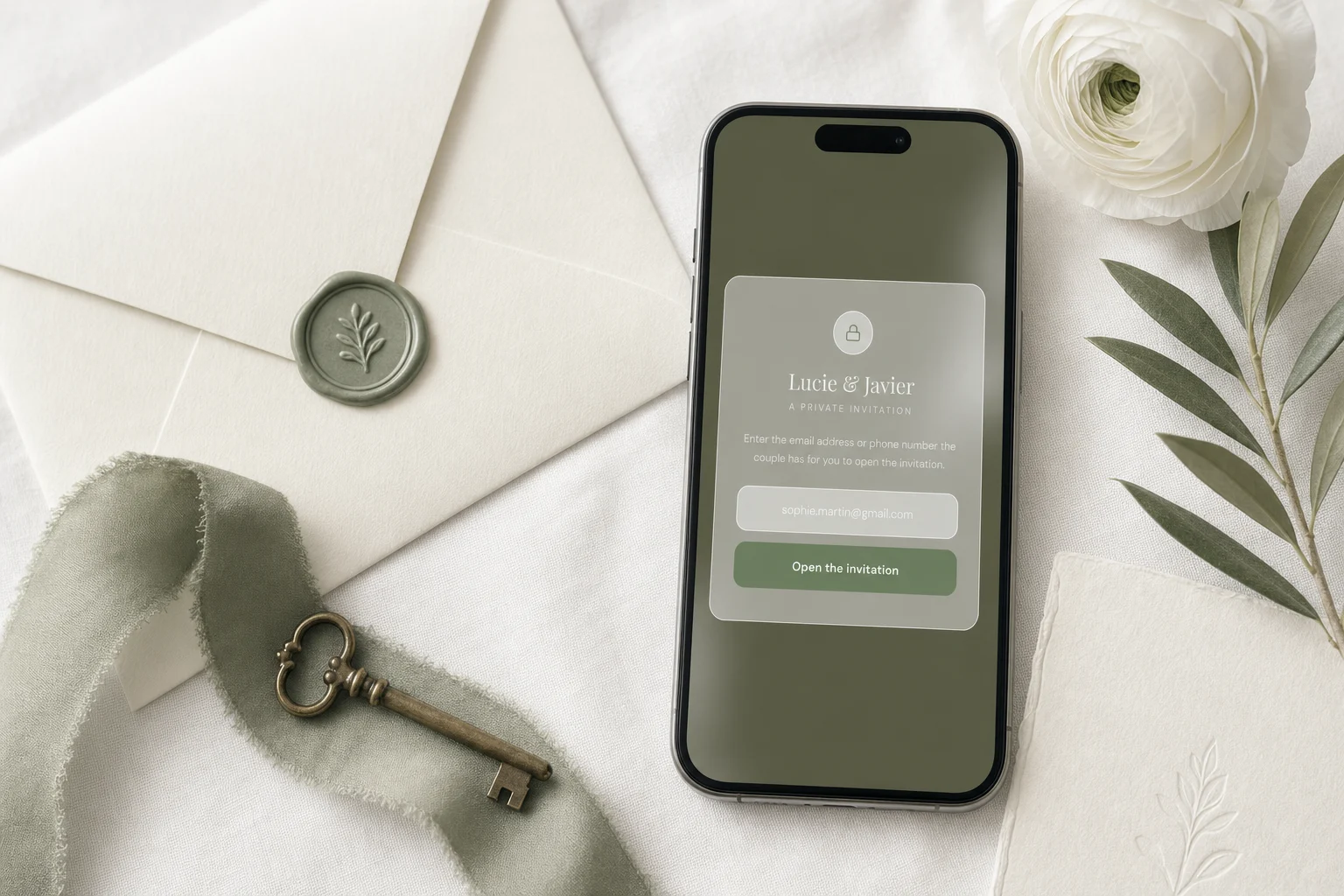
Switch on "Private access" in the RSVP Settings tab. Anyone who opens the link then types an email address or a phone number, and it has to match a guest on your list before anything shows. A forwarded link is useless to someone you did not invite.
It works only for guests with an email or phone on their row, which is one more reason to bring them in from the Zola file. Each guest verifies once per device.
Read who can see a wedding website, and how to keep it to your guests.
Send everyone the new link
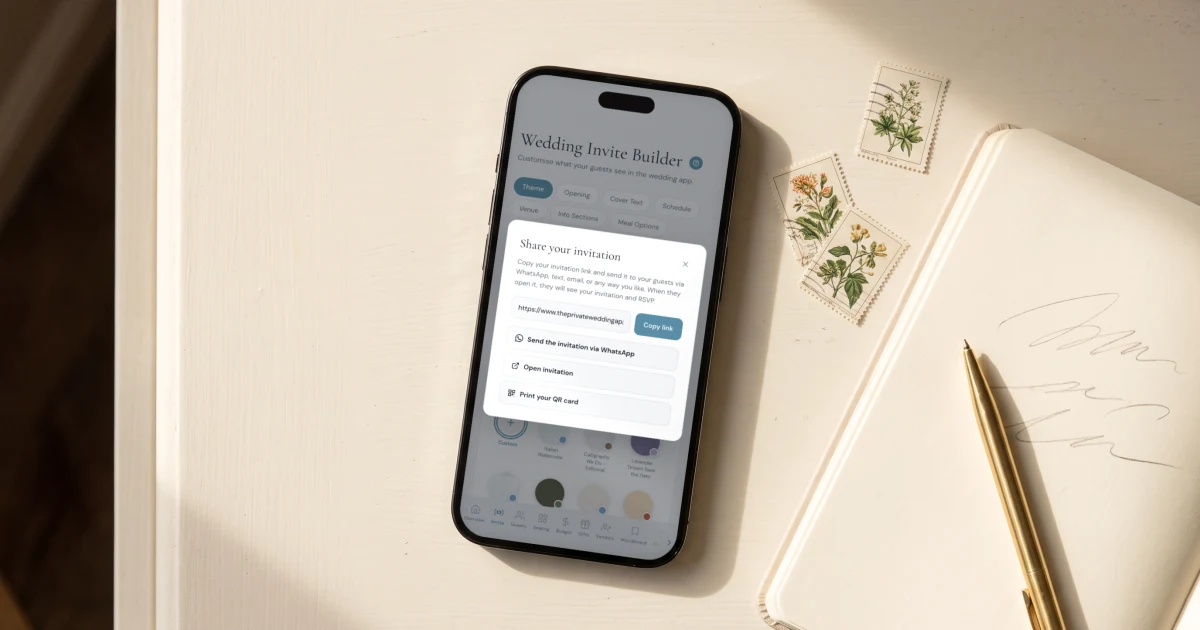
Your Zola address does not forward to your new invitation, so tell your guests the link has changed. Three ways to reach them:
"Email the invitation" on the Guests page sends every guest with an email their own link (their group's link when they are in a group). You see how many will receive it and a preview of the exact email before you press Send.
Each guest row also has a WhatsApp button that opens the chat with your message and their link already typed, sent from your own phone. If your guests text, choose "Text message" under "Send invitations with" and each tap opens a text from your phone instead.
See WhatsApp wedding invitations.
- Private access on, if you want it
- Groups and their events checked
- Send yourself the invitation and reply once as a guest
- Then email, WhatsApp or text everyone the new link
What you get on the other side
The invitation is one part of the planner. The same guest list feeds the seating chart (only guests who said yes, with their meal and allergies on each seat), the caterer day sheet, and the budget tracker, which shows your catering cost per confirmed guest. The checklist keeps the tasks in order, and the AI assistant knows your wedding.
It costs $189 once for lifetime access, or $19.99 a month. On the lifetime plan nothing expires: your invitation stays online and your planner stays open with no time limit.
For the full side by side, read The Private Wedding App vs Zola and Zola alternatives.
Start the 3-day free trial on the pricing page: drop your Zola export into the assistant first, and see your own guests on your own list before you decide.
Every fact on this page, with the date it was checked
Zola, checked 19 November 2026: Can I export or print my guest list from Zola? (export from a desktop computer; the dots in the top right of the Guest List; full list, addresses or RSVPs; "Export RSVPs" on the Track RSVPs page downloads a .csv or Excel file; not available from the app).
The Knot Worldwide and Zola, checked 19 November 2026: Reuters report via The Star, 15 October 2026 (The Knot Worldwide has agreed to buy Zola, per two people familiar with the deal; financial terms not available; subject to customary closing conditions including any required regulatory clearances; Zola to continue as a standalone brand within The Knot's portfolio); PYMNTS, 14 October 2026 (terms not disclosed; subject to regulatory approvals; Zola expected to continue as a separate brand); The Daily Record, 15 October 2026; The Knot Worldwide website (its brands include The Knot, WeddingWire and Hitched).
The Private Wedding App, checked 19 November 2026: pricing ($189 once, or $19.99 a month), the guest list tracker and the multi-event RSVP; independent, owned by neither The Knot Worldwide nor Zola.
Everything you need, in one place
Planning your own wedding without a planner is entirely achievable.
See it for yourself.
Explore the whole platform: cinematic invitation, RSVP with meals and allergies, guest list, seating chart, budget, vendors, checklist, moodboard, guest photo and video sharing and the AI planner. No account needed.
Try the full planner →How do I move my wedding website off Zola?
Export your guest list and your RSVPs from Zola on a computer, import the file into your new platform, mark the guests who already replied, rebuild the pages and send everyone the new link. In The Private Wedding App you drop the export into the assistant and it adds every guest on one card you confirm. Your Zola design, photos and web address do not move.
Can I export my guest list from Zola?
Yes, from a desktop computer. Zola's help page says to open your Guest List, click the dots in the top right-hand corner and pick the format: the full list, just the addresses, or the RSVPs. It says the option is not available from the Zola app.
How do I export my RSVPs from Zola?
Zola's help page says to go to the Track RSVPs page and click "Export RSVPs" in the upper right corner to download a .csv or Excel file, from a computer.
Will my guests have to RSVP again?
Not necessarily. In The Private Wedding App you set each guest who already replied to attending or declined from the status menu on their row. If a guest does reply again on the new link, the answer lands on their existing row instead of creating a duplicate.
Is there an automatic Zola importer?
No. The Private Wedding App does not connect to Zola. You export the file from Zola yourself and drop it into the assistant or paste the columns into "Import list". Names, emails, phone numbers and groups come in from the file; RSVP answers, meals and allergies are set by hand.
What happens to my Zola registry if I move my website?
Nothing moves it: the registry is not part of the import. If you keep it, add its link as a registry card in the Gifts tab of your new invitation, next to cash gifts if you want them.
Will my old Zola link still work?
That is up to Zola, not to us: your Zola address is not redirected to your new invitation. Send your guests the new link by email, WhatsApp or text, and update any printed card that carries the old address.
Can I keep my wedding website private?
Yes. Switch on Private access and only people whose email or phone is on your guest list can open the invitation, even if the link is forwarded.
Is Zola being bought by The Knot?
The Knot Worldwide has agreed to acquire Zola, Reuters reported on 14 October 2026, citing two people familiar with the deal. The deal is not closed yet: financial terms were not disclosed, it is subject to closing conditions including regulatory clearance, and Zola is expected to keep operating as a separate brand within The Knot Worldwide.
How much does it cost?
$189 once for lifetime access, or $19.99 a month. Both include the invitation with RSVP per event, meals and allergies, the guest list, the seating chart, the budget tracker, the checklist and the AI assistant. 3-day free trial.